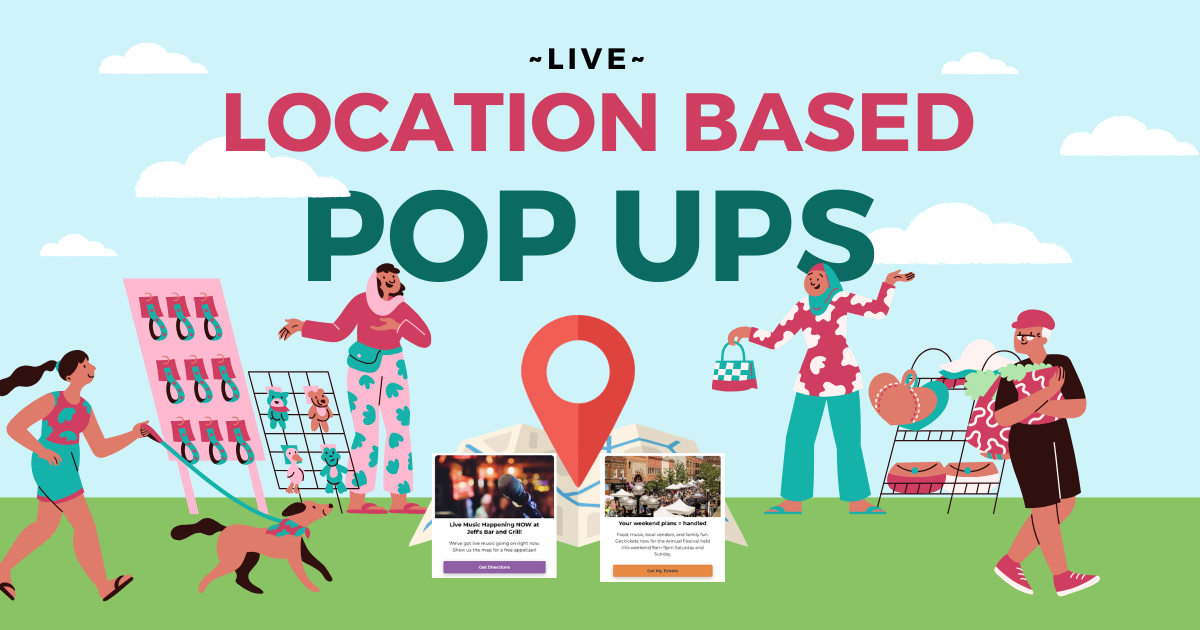
If you’ve ever wanted your Proxi map to feel more like a real-world experience, location-based pop-ups are for you.
With Proxi’s new pop-up system, you can show different messages to different people based on where they are and when they’re viewing your map. You can also create multiple pop-ups at once, control which one shows first, and use them to promote sponsors, collect emails, drive traffic to specific locations, or simply share timely information.
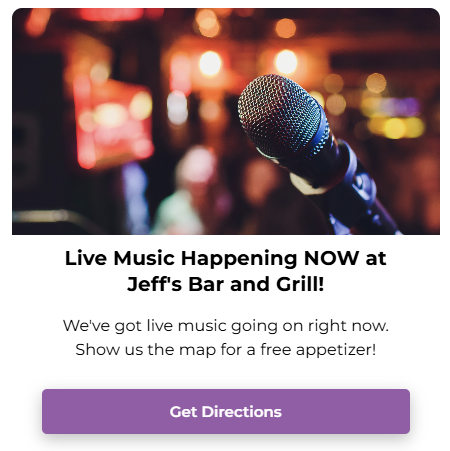
Here’s what’s new and how to use it.
What’s New: Multiple Pop-Ups (Not Just One)
Previously, Proxi maps supported a single pop-up experience.
Now you can:
- Create multiple pop-ups per map
- See which pop-ups are live vs draft
- Prioritize pop-ups so the most important message displays first
This opens up a lot of flexibility for campaigns. Instead of choosing one message for everyone, you can run different pop-ups for different locations, sponsors, or time windows.
Priority Settings: Decide Which Pop-Up Shows First
Each pop-up has a priority setting from 0 to 100.
- 100 = highest priority (shows first)
- Use priority to control which message takes precedence when multiple pop-ups could apply
This is especially useful if you’re monetizing your map through sponsors or featured promotions. For example:
- A paid sponsor pop-up can be priority 100
- A general “welcome” message can be lower priority
- A seasonal reminder can sit in the middle
If you are selling pop-ups as a sponsorship placement, priority gives you a clean way to ensure paying partners get top visibility.
Customize the Content and Branding
Pop-up content is designed to be simple and high-impact:
You can add:
- A header (your main message)
- A description (supporting details)
- An optional header logo (great for sponsor branding)
You can also match the pop-up design to your brand (or a sponsor’s brand) by customizing:
- Background color
- Text color
- Call-to-action button color
This makes pop-ups feel consistent with your map and your organization, rather than looking like an “overlay” that doesn’t belong.
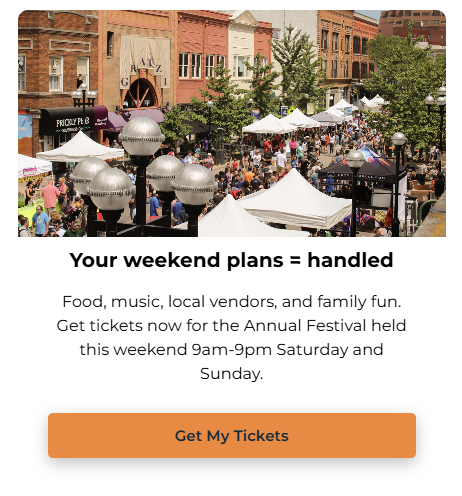
Two Ways Pop-Ups Can Display
Pop-ups can appear in two main ways:
1) Show on Map Load
This is the classic behavior: the pop-up appears once the map loads (with optional timing controls).
Great for:
- “Welcome to the map” messages
- High-level campaign announcements
- General sponsor messaging
- Quick reminders, alerts, or instructions
2) Show Based on Logic (Location, Time, or Both)
This is the big upgrade.
You can trigger a pop-up when someone:
- Enters a specific geofenced area (like a city, neighborhood, or event footprint)
- Views the map during a specific time period
- Meets both conditions (location + time)
That means your map can behave differently depending on who’s viewing it and when.
Location-Based Triggers: Use a Geofence
When setting up a pop-up, you can draw a geofence over a city or a specific area.
For example, you could build a geofence around:
- Downtown Seattle
- A festival footprint
- A shopping district
- A visitor zone near hotels
- A campus or employer location
Then, only people inside that area see that message.
This is perfect for location-specific promotions like:
- “You’re nearby, stop in today”
- “This weekend only”
- “Tap here for the event check-in”
- “Open the featured location
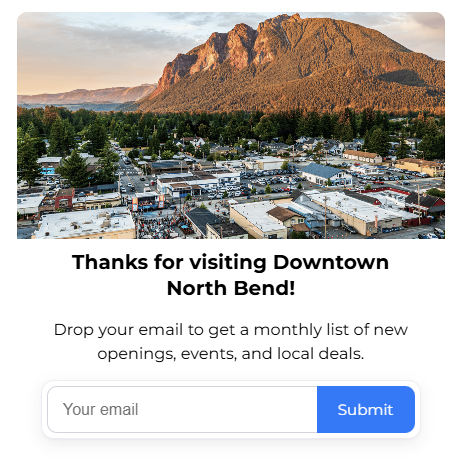
Time-Based Triggers: Run Pop-Ups During a Campaign Window
You can also set a date range so the pop-up only shows during a specific time period.
Examples:
- “This week only”
- A weekend activation
- A month-long sponsor placement
- A holiday campaign
Pairing time triggers with geofencing is where things get really powerful. You can run campaigns that are:
- Only visible in a defined geographic zone
- Only visible during the time window you choose
So your map can stay evergreen, while your pop-ups rotate for new events and sponsors.
Control the Timing: Delay and Frequency
You also get a few settings that make pop-ups feel more intentional (and less annoying):
- Delay: Wait a set number of seconds before showing the pop-up (ex: 10 seconds)
- Frequency: Control how often someone sees it (ex: once per week or once per month)
This is a strong option if you’re selling pop-ups as a recurring sponsor benefit. Instead of overwhelming your audience, you can set pop-ups to appear on a predictable cadence.
Choose What Happens When Someone Clicks
At the bottom of each pop-up, you can choose what the action should be:
Info Only
Just a message, no action required.
Use this for:
- Announcements
- Alerts
- Instructions
- Quick context, like “This event is live now”
Collect Emails
Turn the pop-up into a lead-generation moment.
This is great for:
- Downtown organizations building their email list
- Tourism campaigns
- Event registration
- Sponsor offers that require follow-up
Link Out
Send users to any URL.
Use this for:
- Ticket purchases
- Sponsor websites
- Donation pages
- Restaurant reservations
- Booking pages
Open a Point
This is one of the most exciting options.
When a user clicks the pop-up, Proxi can automatically open a specific point card on your map. That means you can use pop-ups to guide people to:
- A sponsor listing
- A featured business
- A key event location
- A “start here” point for an activation
It’s a simple interaction, but it creates a very directed path from message → action.
Real Examples of How Teams Use Location-Based Pop-Ups
Here are some high-value use cases we’re seeing:
- Sponsor placements: Sell pop-ups as premium inventory, especially with priority controls and branding
- Event promotions: Trigger pop-ups only during the event date range and within the event footprint
- Visitor engagement: Show pop-ups near hotels or visitor zones with “top things to do nearby”
- Email list growth: Collect emails inside the pop-up before sending people to the map content
- Featured business pushes: Open a specific point card when the user clicks, making the sponsor feel instantly “highlighted”
- Seasonal campaigns: Rotate pop-ups for holidays, restaurant weeks, shopping events, and passport challenges
Want to See It in Action?
If you’re already using Proxi maps, pop-ups are one of the easiest ways to make your map feel more interactive, more monetizable, and more connected to what’s happening on the ground.
Whether you’re promoting a sponsor, collecting leads, or running a location-based campaign, the new pop-up feature gives you control over:
- what people see
- when they see it
- where they see it
- and what action happens next
If you want help planning your first pop-up campaign (or packaging it as a sponsor benefit), Proxi’s team can help you build it quickly and make sure it aligns with your goals.
Adventure Awaits!
Check out some of the latest articles on our blog